Wd提问
制作ai矢量图
Ai回答
Creating an AI vector graphic involves using a software tool that supports vector graphics, such as Adobe Illustrator, and incorporating elements of artificial intelligence (AI) or machine learning (ML) to generate or manipulate the graphic、Here's a basic guide on how to approach making an AI vector graphic, assuming you have a foundational understanding of vector graphics software:
1、Choose Your Software
Adobe Illustrator: Industry standard for vector graphics、It has some AI features, especially with its latest updates incorporating AI (like AIpowered autotracing and vectorization).
Affinity Vector: A professionalgrade vector graphics editor that's a onetime purchase.
Inkscape: A free and opensource vector graphics editor.
2、Designing Your Graphic
1、Launch Your Software: Open your chosen vector graphics editor.
2、Create a New Document: Go to `File` `New` to start a new project、Set your dimensions, resolution, and color mode as needed.
3、Basic Design Elements
Shapes: Use basic shapes like rectangles, ellipses, and polygons to start building your graphic、You can find these tools in the toolbar of most vector graphic editors.
Lines and Paths: Learn to use the Pen tool (often represented by a fountain pen icon) to create custom shapes and paths.
4、Incorporating AI
If by AI you mean incorporating intelligent or automated features:
Using AIpowered Tools: Some vector software, like Adobe Illustrator, offers AIpowered features、For instance, you can use the Pen tool with AI assistance to automatically close paths or suggest shapes.
Plugins and Scripts: There are thirdparty plugins and scripts available for software like Illustrator that can automate tasks or add AI functionality, such as automatic vectorization of raster images.
5、Vectorizing an Image
If you want to turn a raster image into a vector graphic using AI:
1、Open the Raster Image: Import the raster image you want to vectorize.
2、Use Live Trace (Illustrator): Go to `Object` `Live Trace` `Make`、This feature automatically converts your raster image into a vector graphic、You can adjust the settings to get the desired level of detail.
3、Expand: Once you're happy with the traced result, go to `Object` `Live Trace` `Expand` to convert the tracing into editable paths.
6、Editing and Refining
Adjust Paths: Use the Direct Select tool to edit the paths and shapes generated by the AI or tracing feature.
Colors and Gradients: Apply colors, gradients, and patterns to your shapes.
7、Saving Your Work
Save: Regularly save your work in the native format of your software (e.g., `.ai` for Illustrator, `.afdesign` for Affinity Designer).
Export: When you're done, export your graphic in the desired format (e.g., `.svg`, `.eps`, `.pdf`, `.png`, or `.jpg`).
Tips for AIEnhanced Graphics
Experiment with AI Tools: Keep an eye on updates to your chosen software, as AI features are continually being improved and added.
Learning Resources: Utilize online tutorials and courses that focus on vector graphics and AIassisted design.
Example AIGenerated Vector Graphic
Let's say you want to create a simple AIthemed vector graphic:
1、Background: Create a simple gradient background.
2、Robot: Use basic shapes to draw a robot、
Body: Rectangle.
Head: Circle.
Limbs: Lines and rectangles.
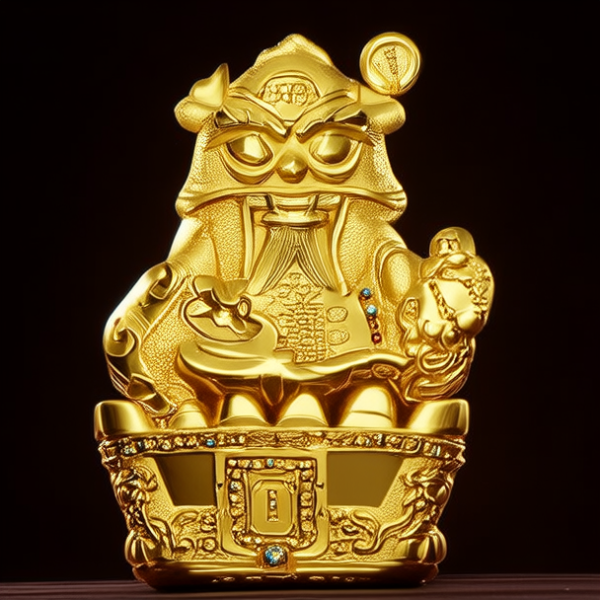
3、AI Elements: You could incorporate patterns or shapes generated with AI tools or plugins, such as detailed metallic textures.
Creating an AI vector graphic is a blend of traditional graphic design skills and leveraging the AI features available in your software of choice、As AI technology advances, we can expect even more sophisticated tools to become available, making the process of creating vector graphics more intuitive and powerful.
1、Choose Your Software
Adobe Illustrator: Industry standard for vector graphics、It has some AI features, especially with its latest updates incorporating AI (like AIpowered autotracing and vectorization).
Affinity Vector: A professionalgrade vector graphics editor that's a onetime purchase.
Inkscape: A free and opensource vector graphics editor.
2、Designing Your Graphic
1、Launch Your Software: Open your chosen vector graphics editor.
2、Create a New Document: Go to `File` `New` to start a new project、Set your dimensions, resolution, and color mode as needed.
3、Basic Design Elements
Shapes: Use basic shapes like rectangles, ellipses, and polygons to start building your graphic、You can find these tools in the toolbar of most vector graphic editors.
Lines and Paths: Learn to use the Pen tool (often represented by a fountain pen icon) to create custom shapes and paths.
4、Incorporating AI
If by AI you mean incorporating intelligent or automated features:
Using AIpowered Tools: Some vector software, like Adobe Illustrator, offers AIpowered features、For instance, you can use the Pen tool with AI assistance to automatically close paths or suggest shapes.
Plugins and Scripts: There are thirdparty plugins and scripts available for software like Illustrator that can automate tasks or add AI functionality, such as automatic vectorization of raster images.
5、Vectorizing an Image
If you want to turn a raster image into a vector graphic using AI:
1、Open the Raster Image: Import the raster image you want to vectorize.
2、Use Live Trace (Illustrator): Go to `Object` `Live Trace` `Make`、This feature automatically converts your raster image into a vector graphic、You can adjust the settings to get the desired level of detail.
3、Expand: Once you're happy with the traced result, go to `Object` `Live Trace` `Expand` to convert the tracing into editable paths.
6、Editing and Refining
Adjust Paths: Use the Direct Select tool to edit the paths and shapes generated by the AI or tracing feature.
Colors and Gradients: Apply colors, gradients, and patterns to your shapes.
7、Saving Your Work
Save: Regularly save your work in the native format of your software (e.g., `.ai` for Illustrator, `.afdesign` for Affinity Designer).
Export: When you're done, export your graphic in the desired format (e.g., `.svg`, `.eps`, `.pdf`, `.png`, or `.jpg`).
Tips for AIEnhanced Graphics
Experiment with AI Tools: Keep an eye on updates to your chosen software, as AI features are continually being improved and added.
Learning Resources: Utilize online tutorials and courses that focus on vector graphics and AIassisted design.
Example AIGenerated Vector Graphic
Let's say you want to create a simple AIthemed vector graphic:
1、Background: Create a simple gradient background.
2、Robot: Use basic shapes to draw a robot、
Body: Rectangle.
Head: Circle.
Limbs: Lines and rectangles.
3、AI Elements: You could incorporate patterns or shapes generated with AI tools or plugins, such as detailed metallic textures.
Creating an AI vector graphic is a blend of traditional graphic design skills and leveraging the AI features available in your software of choice、As AI technology advances, we can expect even more sophisticated tools to become available, making the process of creating vector graphics more intuitive and powerful.
0
IP地址
180.69.61.98
搜索次数
389
提问时间
2025-10-09 16:40:32
商家广告

求名

广告招商

域名抢注
域名购买
热门提问
域名评估
最新挖掘
热门作画

关于我们
加入群聊

群聊 1立即加入

群聊 2立即加入

群聊 3立即加入
选择任意群聊,与同好交流分享
友情链接